In HubSpot’s new Marketing Studio, you can build in about 30 minutes what used to take probably three hours.
Anyone who has built a HubSpot campaign knows the old routine. Build the landing page in one tool, then the form, then write the emails, then set up the workflow, then add the event, then go back and attach everything to the campaign record so the reporting works. None of it’s especially hard, it’s just a lot of time-consuming stuff, repeated every campaign.
Marketing Studio is meant to streamline all this by putting all of that in one place and making it easy to build the campaign and assets with Breeze. Since the beta was released we’ve been testing it with a few campaigns and clients, and below are the things I like, including some you might miss if you only skim the headline features. I’ll also tell you what you might find annoying about it.
Note: Marketing Studio is in beta and requires Marketing Hub Professional or Enterprise.
1. Breeze builds the first draft of the whole campaign
This is where most of the time savings come from. Instead of creating each asset by hand, you work with Breeze as your assistant and it drafts the pieces for you. You’re editing and approving instead of starting from a blank page six times.
(We’ve said it before, but reminder: if you haven’t used Breeze in a while, this is not the basic version you probably tried and quickly forgot about.)
To illustrate how it works, let’s look at campaign for a fictional launch for a construction technology company called BuildTech. It ended up with two landing pages, a form, an automated email, a marketing event, and two meetings, all laid out on one canvas with the connections between them visible. Building that the old way means separate trips through the page editor, the form tool, the email editor, and the events tool, plus the time it takes to attach each asset to the campaign. That’s where my three hours used to go.
Once you get your assets, you’ll still want to tweak copy and fix things. But editing a draft is a whole lot faster than building every asset from scratch (again – minutes, not hours).

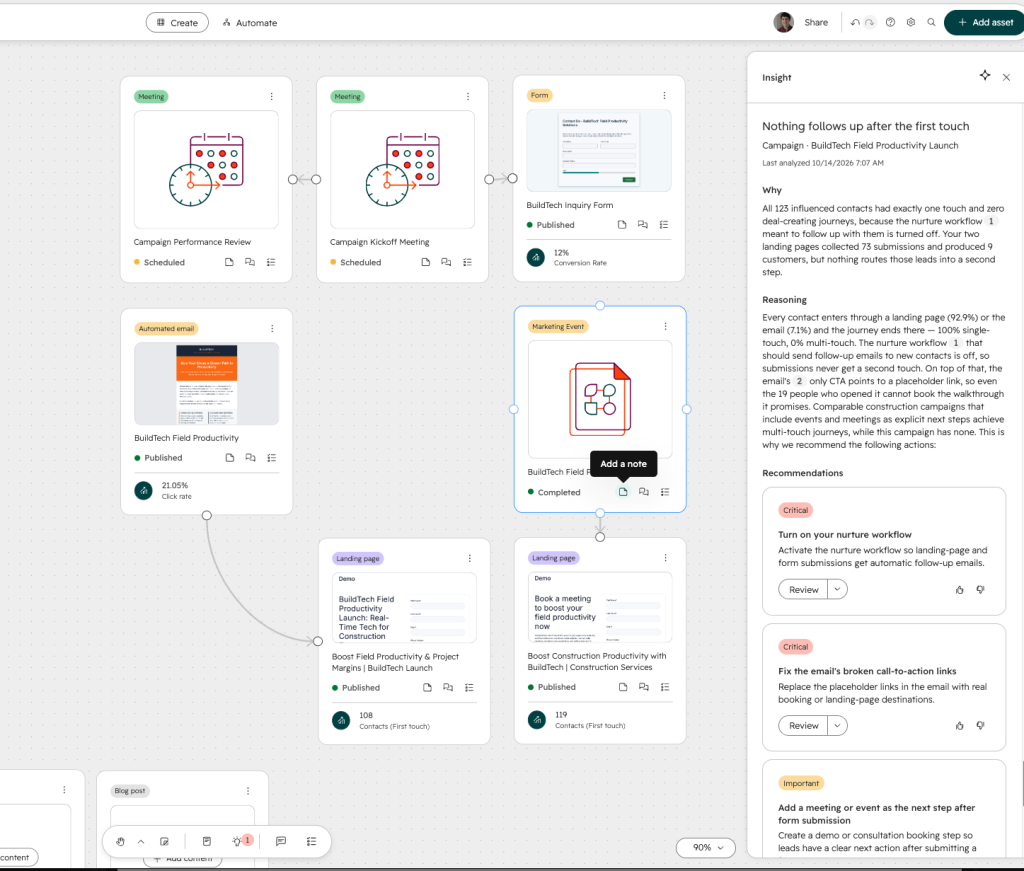
2. The Insights tab shows you what you’re missing
HubSpot analyzes each campaign, and when it finds something worth your attention, it shows up as an insight with recommendations. On my BuildTech demo, the insight was titled “Nothing follows up after the first touch.” HubSpot’s reasoning was that all 123 influenced contacts got exactly one touch, because the nurture workflow meant to follow up with them was turned off. It also caught that the email’s only call to action pointed to a placeholder link, so the 19 people who opened it had no way to book the walkthrough the email promised.
The campaign is demo data (of course in real life I would NEVER make a mistake!) but the logic is the point. These are the mistakes a post-launch review would catch, and plenty of teams never do that review. Each recommendation is tagged by priority (Critical, Important), and you can approve it, assign it to someone, or mark it complete. It works like a built-in punch list that tells you where the campaign has room to improve and who should fix it.
3. Campaign briefs take a few clicks
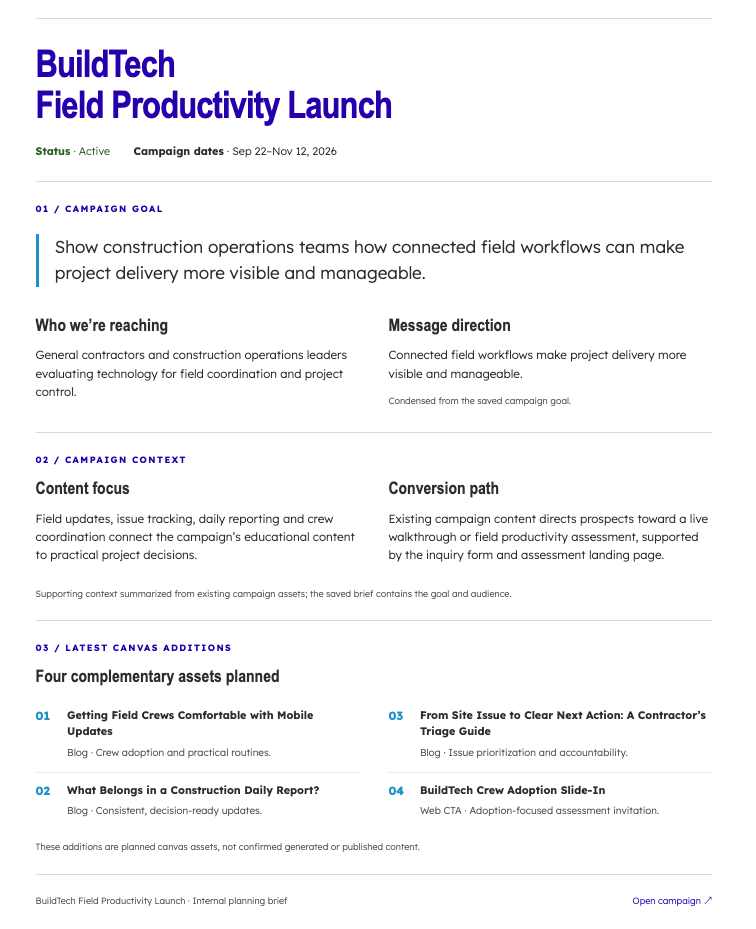
The Campaign brief button sits at the top of the campaign details panel, and it’s easy to walk right past. Generate one and you have something you can send for approval, either shared through HubSpot or exported as a PDF.
If you work with clients, or a boss who wants to sign off before anything launches, this replaces a document you’d otherwise write by hand after the campaign is already planned. Getting approval earlier is a small thing that saves a lot of rework later.
4. Comments with tagging right on the canvas
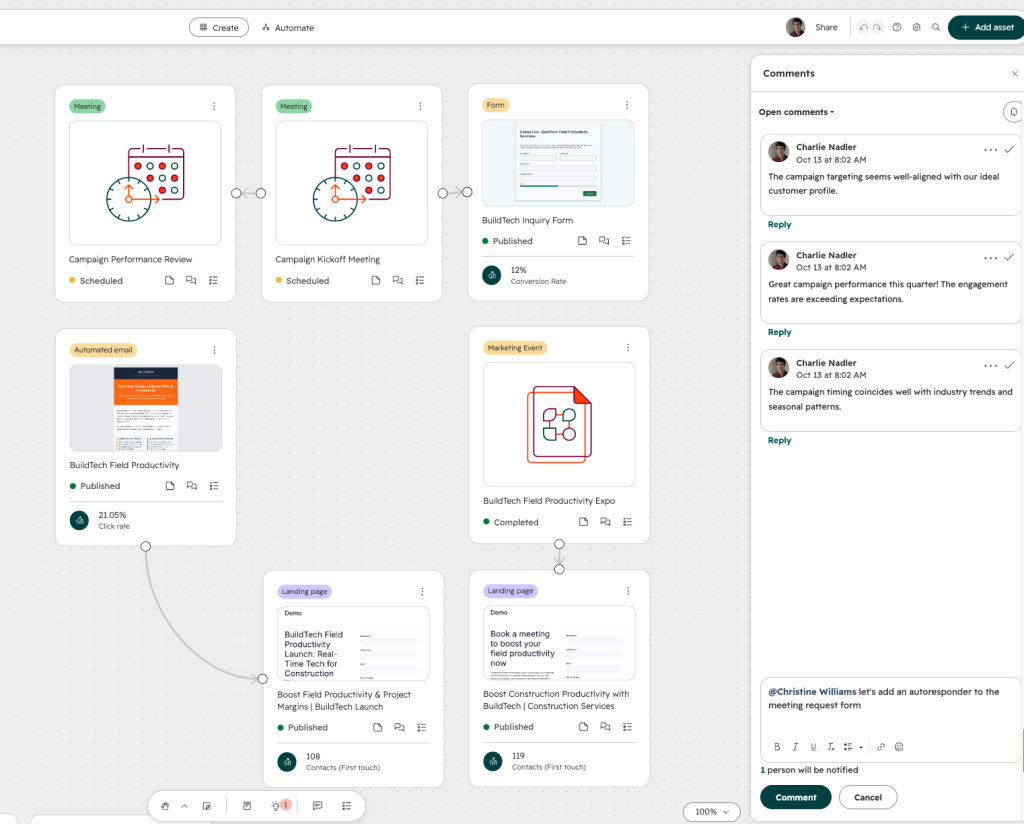
You can leave comments in Marketing Studio and @-tag a teammate, who gets notified. If you’re collaborating across a team members, this covers the kind of feedback that usually ends up in a Slack message or an email thread (somewhere you have to go track down vs review right in the tool).
Every asset card also has its own comment and task icons, so a note can sit on the exact landing page or email it refers to. Three months from now, you can still see why a change was made.
5. Sticky notes and tasks without leaving the tool
The toolbar at the bottom of the canvas has sticky notes, insights, comments, and tasks. Sticky notes are good for the loose stuff: reminders, open questions, things you want the team to see at a glance. Tasks are embedded too, so you can create and assign follow-ups right where the work is, and see them in the Tasks & Activity tab on the campaign record.
It sounds minor, but it cuts down on the project management tool that sits next to your marketing tool, with nothing connecting the two.

6. Automation is right there
There’s an Automate button at the top of the canvas, next to Create, and an Automations tab on the campaign record. You can set up and manage the workflows tied to a campaign without bouncing over to the Workflows tool and then hunting for the campaign again. If you’ve ever lost ten minutes to that round trip, you’ll appreciate it.
It also makes problems easier to spot. The broken piece in my BuildTech insight was a workflow that was switched off. When workflows sit next to the assets they serve, that kind of gap is a lot harder to miss.
What you might not love
Especially if you’re used to the old Campaign tool, the Canvas takes some getting used to, and not everyone will like it. If you’re used to list views and step-by-step builders, a freeform board with cards and connecting lines feels odd at first. Some people on your team may prefer the campaign record and only open the Canvas when they need it.
The other issue is that there’s a lot going on. With all the new features, it can be overwhelming at first, and it’s not always obvious where to find what you need. Insights, comments, tasks, automations, the brief, and the budget live in different places. After you’ve built a few campaigns it gets much easier, but your first one will be slower than 30 minutes.
And it’s a beta, so expect things to move around.
Should you try it?
If you’re a HubSpot customer on Marketing Hub Professional or Enterprise and haven’t opened Marketing Studio yet, build a small campaign in it. Use a real one, because the time savings only show up when you have actual assets to build. Expect a slow first run and a faster second one.
If you’re comparing HubSpot with another platform, this is worth seeing in action. Building a campaign across assets with insights and automation in one place is a real advantage over working tool by tool. It isn’t a reason on its own to pick HubSpot, and the Canvas won’t suit everyone. But it’s a clear improvement over how campaigns used to get built.
You can read more on HubSpot’s Marketing Studio page. If you want help getting set up, or you’re trying to figure out whether HubSpot fits your team, Simple Machines can help. Get in touch and we’ll walk you through it.