HubSpot is constantly rolling out new features that run the gamut from nice-to-have fixes to significant game-changers in users’ day-to-day work. And for most of us, any saved time is a win!
The pace of new features and products the last few months has been a lot to keep up with so we put together a short list of some favorites. Let’s look at a few handy time-saving HubSpot tools you may have missed or forgotten about.
Putting AI Assistants to Work
Let’s start with HubSpot’s AI Customer Analysis Assistant. It offers a wealth of generative AI summaries and descriptions and we’ve found two particularly helpful.
AI-Generated Workflow Descriptions:
Have you ever searched through a long list of workflows and had to click into them, one by one, until you found what you were looking for? Wouldn’t it be great to have an easily visible description of each one right next to its title in the workflow library so you knew exactly what each workflow did without opening it up and inspecting the actions?
Of course it would … and now you can!
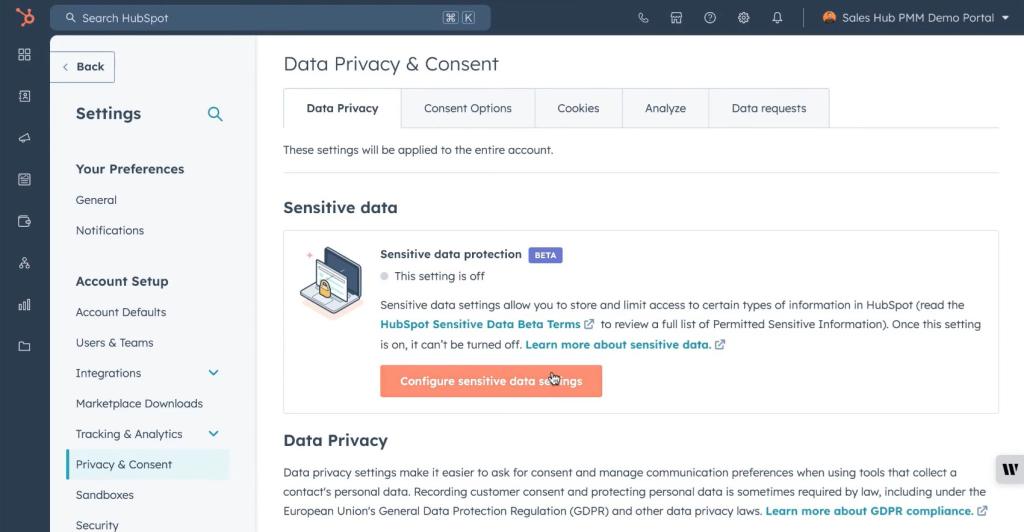
To enable this feature, go to Settings > AI Assistants and toggle the “Customer Analysis” button “on”.
Add descriptions by clicking on the title of the workflow and hitting “Generate”:

The description appears! You can generate again or edit as necessary before hitting “save”. You can also go back and add descriptions to existing workflows in the same manner.
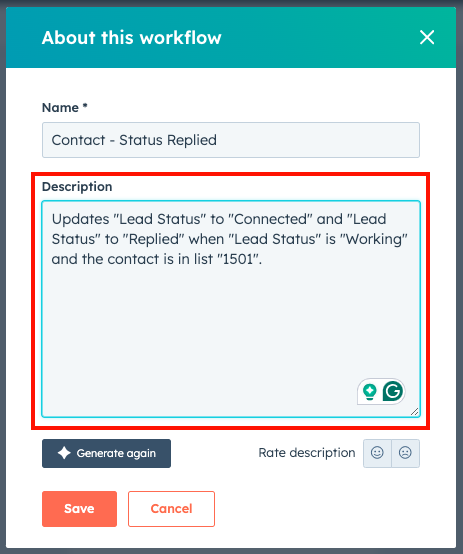
Once you’ve added descriptions to your workflows, they will appear in a column titled as such in your workflow library, allowing you to quickly scan the descriptions without clicking on each one to investigate the actions. (Who has time for that?)
This is especially useful if you’re creating a new workflow that’s similar to one you’ve built in the past – you can easily find it for reference or cloning. It’s also handy if you’re troubleshooting problematic workflow interaction – you can narrow down the likely culprits much faster by reading the descriptions instead of opening each suspect workflow.
AI-Generated Report Summaries
Once your AI Customer Analysis Assistant is enabled, you can also generate descriptions for your reports. To do this, select the tab labeled “About” within each report. Click “Generate” to add a description. As with the workflow description tool, you can generate it again or edit it as necessary to finetune the summary.
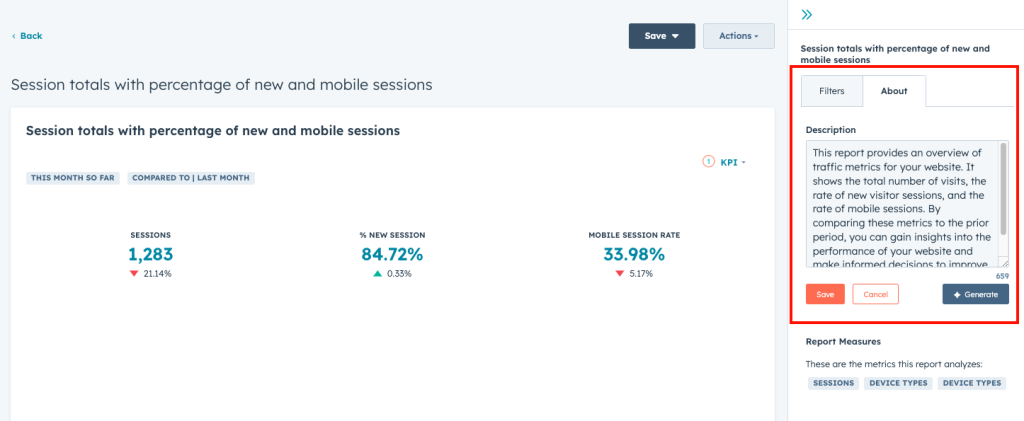
Once the description is generated and saved, you can quickly reference it by hovering over the “i’ to the immediate left of each report name.
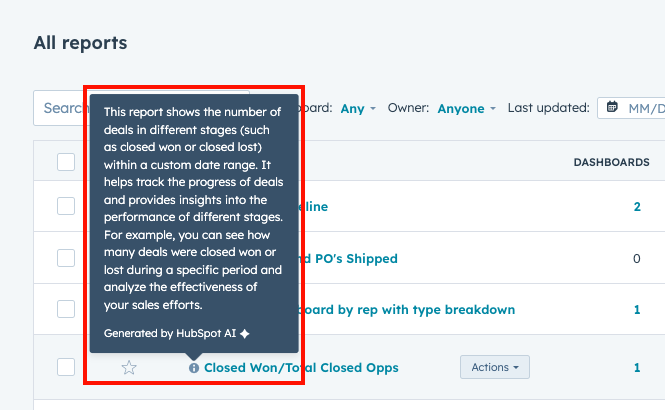
This tool is great for noting the differences between similar reports and clarifying the data sources and intent of each report. For users who routinely create reports, it can help reduce the number of duplicate reports, and clue them into a report that may be very close to what they need.
It’s also handy if you share reports with people who aren’t as familiar with your processes or your data, like other departments or new team members. The descriptions help provide additional context for the story you’re illustrating through your reports and make complex data more accessible to non-technical team members.
HubSpot’s Content Remix Tool
When discussing new content or addressing gaps in current content libraries, we often say ”There’s no sense in re-inventing the wheel.” And now HubSpot can help you repurpose your content. Their innovative content repurposing tool in Content Hub (Pro and Enterprise) – Content Remix – is designed to enhance and streamline the content creation process. Using artificial intelligence (AI) and automation, Content Remix enables you to easily transform your most valuable content assets for use across multiple channels and formats – all from your HubSpot portal.
This gives you the following advantages over creating content piece by piece the old-fashioned way:
- Valuable Content Repurposing: Easily convert existing assets like blog posts into a variety of formats such as landing pages, ads, social media posts, audio, translations, images, and additional blog posts with just a few clicks. This allows you to create and distribute content more efficiently across all the channels where you can reach (and attract!) a wider audience, which means more prospects and (hopefully!) more customers. This tool lets you leverage the full value of your content by extending its lifespan, ensuring brand messaging is consistent and engaging audiences across different platforms and formats.
- Time and Resource Savings: Streamline the content repurposing process, saving valuable time and resources that can be redirected to other strategic initiatives. You can also save valuable time and resources by automating repetitive tasks and streamlining workflows, reducing the need for additional content creation efforts.
Here’s how it works:
Navigate to Content > Remix. Click “Start remixing”.
At the top of the page, click the edit icon and enter a name for your remix: 
In the center box, click “Add content”. Then, in the left panel, select an existing piece of content or add new text for the tool to base its remix on:

Additional dropdowns will appear based on your choices – blog posts, site pages, landing pages. You can also start from a new text or a URL; select what’s appropriate for your project and continue:
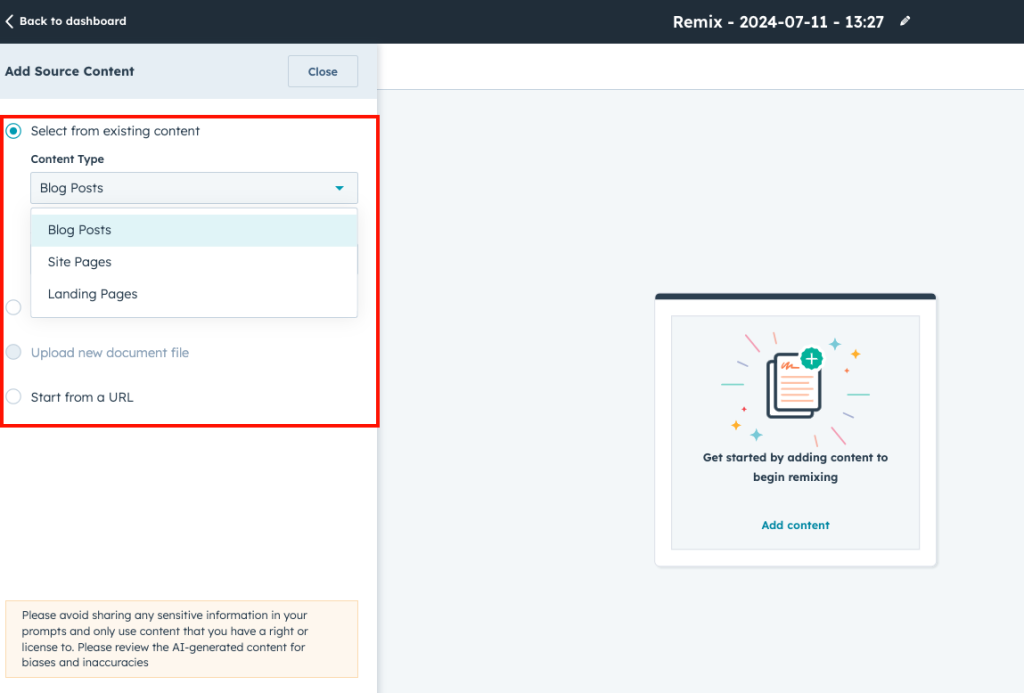
Click the Content type dropdown menu and select Blog Posts, Website Pages, or Landing Pages, etc. You can choose up to six in total.
In the left panel, select the checkbox next to each content type you want to generate, then click Next. Your content will appear on the remix page:
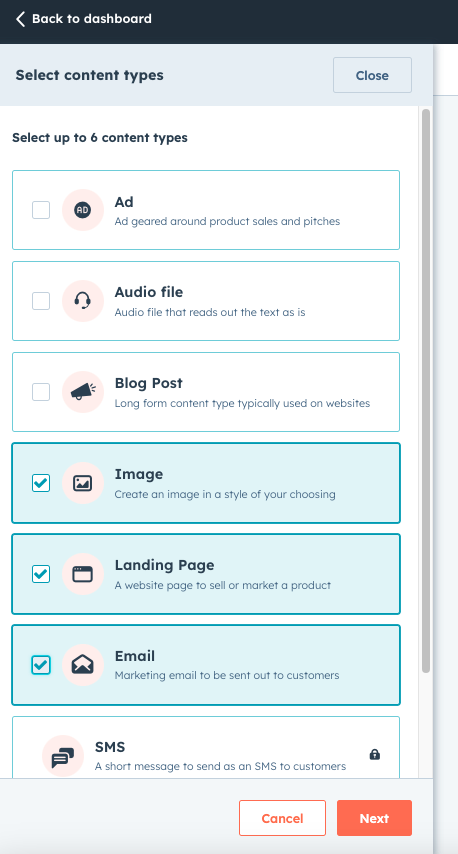
At that point, you can edit the copy and attributes of each new piece of content to suit your needs and save it for future use. Each piece of generated is saved just as it would be if you created it yourself – emails in the email library, landing and website pages in the Content Hub and so forth.
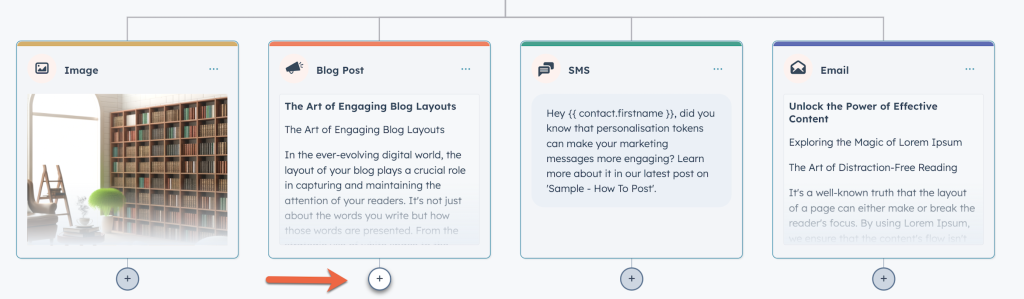
With HubSpot’s Content Remix tool, you can upgrade your content strategy, and make certain each piece of content is used to its fullest potential.
Expanded Workflow Triggers with New Date Options
HubSpot has introduced enhanced calendar date and date property trigger options for workflows, now available to all workflow users.
Now you can use triggers based on date properties in associated records. With this update, you can initiate workflows a specified number of days before or after a date property. Additionally, the expanded capabilities now support annually recurring workflows, even for users without Operations Hub.
This capability would be ideal for:
- Customer Follow-ups: Schedule a check-in with customers exactly three months after their purchase to ensure satisfaction and address any concerns.
- Event Promotion: Send recurring email reminders leading up to an event to build excitement and boost attendance.
- Special Occasions: Automate annual birthday or anniversary emails to engage customers and strengthen relationships.
- Contract Renewals: Create new deals in the months leading up to an anticipated contract renewal, ensuring timely follow-up and increased renewal rates.
With these new workflow triggers, you can create more precise and timely automation, allowing you to further personalize and streamline your outreach.
Capture Contact Data Using Hidden Form Fields in HubSpot
This isn’t a new feature, but an oft-forgotten feature that can streamline data collection with minimal effort. HubSpot’s hidden form fields feature allows you to gather valuable contact information and set specific property values based on form submissions. This feature is useful for tracking and segmenting contacts according to their actions, such as signing up for a webinar or downloading an eBook.
Hidden Form Fields enable you to create custom fields within your forms that remain invisible to users but are automatically populated based on their form submissions. For instance, you can create a hidden field named “Webinar [Name] Signup” and set its value to “Yes” when someone registers for a webinar. This method allows you to easily identify and segment contacts who have shown interest in attending your webinars.
Besides webinar or event registrations, here are some other possible uses:
- eBook Downloads: Monitor which contacts download your eBooks to better understand their interests and preferences. Use a hidden field named “Downloaded [eBook Title]” and set it to “Yes” when an eBook is downloaded.
- Event Registrations: Capture data on contacts who register for your events and tailor your follow-up communications accordingly. Implement a hidden field like “Event [Name] Registration” and update it based on the form submission.
- Product Inquiries: Track contacts who inquire about specific products to provide more personalized information and offers. For example, add a hidden field titled “Product [Name] Inquiry” and set it to “Yes” when a product inquiry form is submitted.
- Newsletter Signups: Identify contacts who sign up for different newsletters to segment and target your email campaigns effectively. To do this, create a hidden field called “Newsletter [Name] Signup” and mark it as “Yes” for newsletter subscribers.
Setting up hidden form fields in HubSpot is straightforward. First, navigate to the form editor and add a new field. Choose the field type as “Hidden” and provide a name for the field. Select the appropriate option and the new field will be populated with that value. Or, you can use workflow or automation tools to set other property values based on data in the form submission. This way, you can automate the process of updating contact properties and ensure that your data is accurate and up to date.
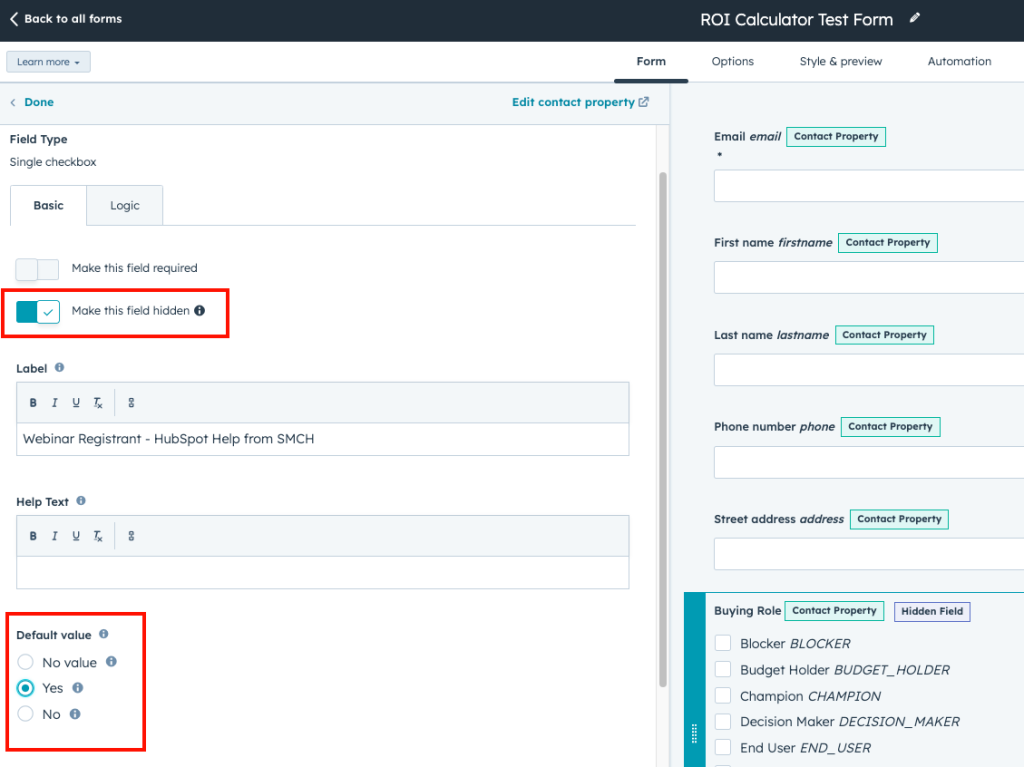
By automating the process of updating contact properties, Hidden Form Fields ensure your data is accurate and up-to-date. This feature allows you to gain valuable insights into your contacts’ interests and preferences, enabling you to personalize your marketing efforts and deliver relevant content and offers.
Final Thoughts
HubSpot’s features are designed to empower sales and marketing professionals by saving time and enhancing efficiency. From the AI assistant that generates descriptions of workflows and reports to customizable dashboards, automated email sequences, smart content, and sales pipeline automation, these tools can give you back some of your most important resource — time.
If you’re interested in using HubSpot to streamline your sales and marketing processes, let us know. We’re happy to help you get the most out of your CRM, sales enablement and marketing endeavors. Get in touch with us anytime.